At a glance
- Takes
- Nothing. It has no ports
- Emits
- Nothing. It never runs
- Good for
- Labelling a group, leaving context, linking out to a doc or another flow
Set it up
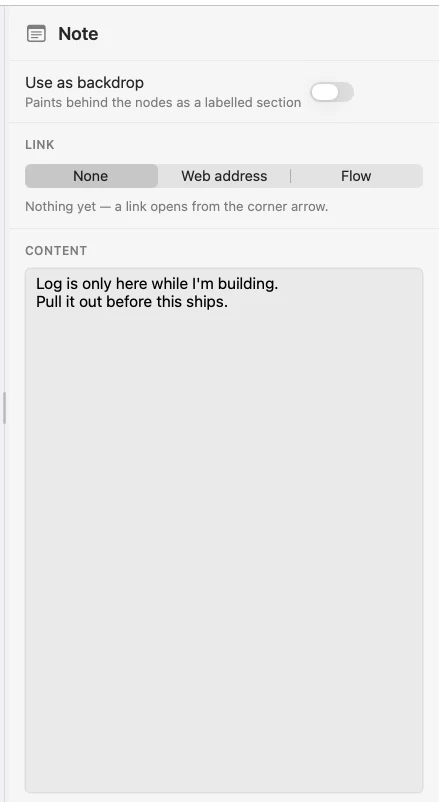
Drop a Note from the palette and type into it. It has no inlets or outlets, so it never joins the graph and never affects a run.
Configure
| Field | Default | What it does |
|---|---|---|
| Note | — | The text shown on the canvas. |
| Colour | Yellow | Seven colours — Yellow, Orange, Pink, Purple, Blue, Green, Gray — from the picker in the toolbar's centre pill when a note is selected. |
| Link | — | A web address, or another flow picked by name. A linked note shows a small ↗ in its corner. |
| Use as backdrop | Off | Turns the note into a Section. |
The colour picker acts on the whole selection: select several notes and one click recolours them all. When they already share a colour, that swatch shows a ring; a mixed selection shows none until you pick one.
Example: label a group
Flip Use as backdrop and the note becomes a Section — a tinted rectangle painted behind the wires, with its text as a corner label. Drag the label band and it carries the nodes standing inside it; resize from any edge and the contents stay put.
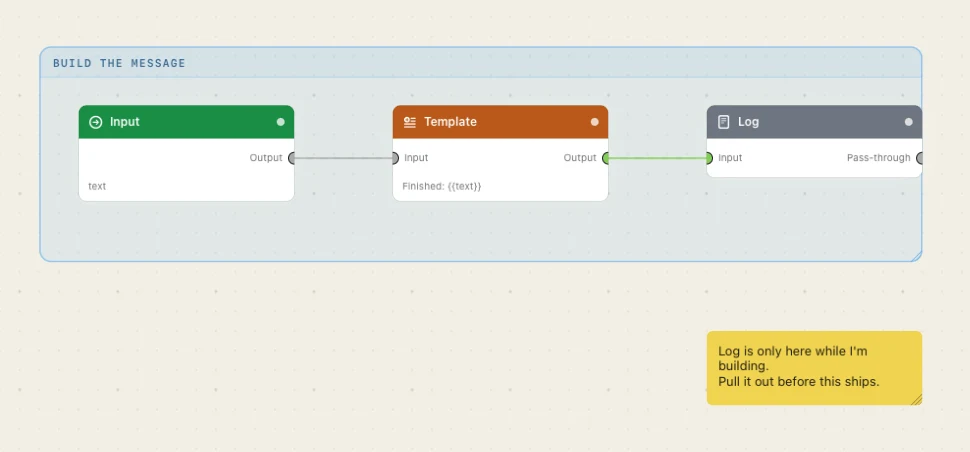
You can also drop one straight from the palette's Section row, or wrap a selection with Edit ▸ Wrap in Section (⌘G). See Sections for the full behaviour.
Good to know
A Section is still a note underneath — same seven colours, same link, still purely visual.
Click the ↗ itself to open a link. On a Section the arrow sits after the label, and the rest of the label band stays the drag handle.
A link that isn't a web address or a flow reads as no link at all, so a stray value can never make a label look clickable.