The Flow Builder turns a sentence into a working flow. To do that it needs an AI model, and you bring your own. The same model also runs AI nodes such as AI Prompt and Agent.
A new copy of Watchflows may already have one model: Apple Intelligence (on-device). It is free and runs AI nodes. It is too small to build flows, though, so the Flow Builder stays hidden until you add a bigger one. This page walks you from there to your first built flow.
1. Pick how you get AI
You need only one. Pick the row that fits you.
| Way | Cost | Setup | Where your prompts go |
|---|---|---|---|
| Watchflows AI | 2,000 free Sparks, then packs or $12/month | An email and a sign-in link | OpenRouter, with a key made for your Mac |
| Your Claude plan | The plan you already pay for | Install an app, sign in | Anthropic, under your account |
| Your ChatGPT plan | The plan you already pay for | Install an app, sign in | OpenAI, under your account |
| An API key | Pay per use | Paste a key | The company that gave you the key |
| Ollama, a local model | Free | Install an app, download a model | Nowhere. It stays on your Mac |
| LM Studio, a local model | Free | Install an app, download a model | Nowhere. It stays on your Mac |
| Apple Intelligence | Free | None | Nowhere. It stays on your Mac |
Already pay for Claude or ChatGPT? Start there. It adds no bill. Want nothing to leave your Mac? Use a local model.
2. Set it up
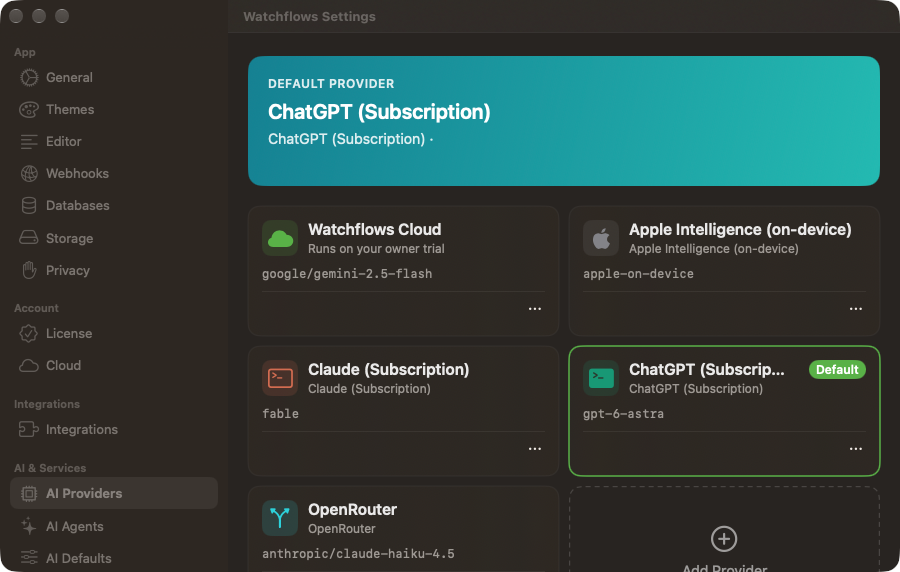
Every way ends in the same place. Open Settings (⌘,) and click AI Providers. The box at the top names your Default Provider. Each card below it is one provider. Add Provider opens the editor.
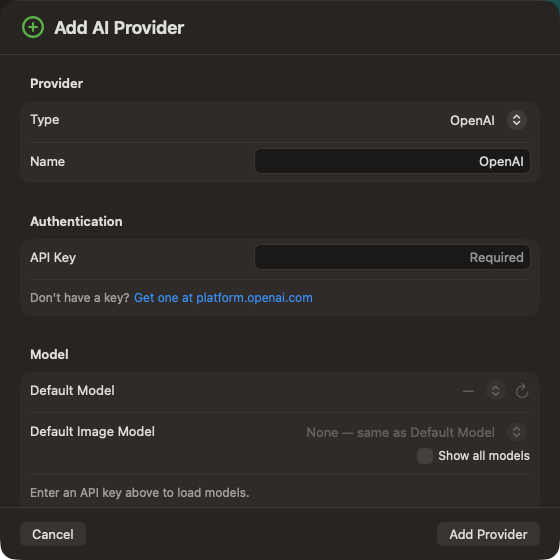
In the editor, pick a Type. The fields change to fit it. Click Add Provider at the bottom to save it.
Watchflows AI
The fastest way to AI in Watchflows: no key to find, no model to download, nothing to install.
- Try it free. Give your email and click the sign-in link we send. You get 2,000 free Sparks, good for 30 days — about 8 flows built by AI, or about 2,000 AI steps. No password, no card.
- Private by design. Your Mac calls the model directly. Your prompts never pass through our servers.
- Then, if you like it. Spark packs from $5 that never expire, or Watchflows Cloud at $12 a month with 6,000 Sparks every month. Sparks you buy also unlock the premium models, such as Claude Opus and GPT-5.5; free Sparks run the good-value ones.
Sign in during first run, or later under Settings ▸ Cloud. Once you have Sparks, Watchflows AI appears in AI Providers, ready to use. Watchflows AI and Sparks covers the account, Sparks, and what happens when they run out. Don't want an account? Pick any other tab.
Claude
- Install Claude Code from claude.com/claude-code.
- Open Terminal, run
claude, and log in with your Claude account. - In Watchflows, click Add Provider and set Type to Claude (Subscription).
There is no key to paste. The editor shows three checks instead: Claude Code installed, Signed in, and Ready. When all three are green, save it. More in Claude (Subscription).
ChatGPT
- Install the Codex app: run
npm install -g @openai/codexin Terminal. This needs Node.js. The source is on GitHub. - Run
codex loginand sign in with your ChatGPT account. - In Watchflows, click Add Provider and set Type to ChatGPT (Subscription).
The editor shows three checks: Codex CLI installed, Signed in, and Ready. More in ChatGPT (Subscription).
API key
First get a key from the company you want to use:
| Company | Get a key |
|---|---|
| OpenAI | platform.openai.com/api-keys |
| Anthropic | console.anthropic.com/settings/keys |
| aistudio.google.com/apikey | |
| OpenRouter, many models behind one key | openrouter.ai/keys |
- In Watchflows, click Add Provider and pick the matching Type.
- Paste the key into API Key. The model list loads.
- Pick a Default Model.
The editor links to the key page too, under Don't have a key? Your key is kept in your Mac's keychain. It is never saved into a flow or an export. Another service that speaks OpenAI's format uses the OpenAI Compatible type, with its address in Base URL. See AI Providers for every type.
Ollama
- Download it from ollama.com/download and open it.
- Pick a model from the Ollama library and run
ollama pull <name>in Terminal. - In Watchflows, click Add Provider, set Type to Ollama, and pick your model.
The address is filled in for you. Keep the app running while you use Watchflows. Small models work, but bigger ones build flows more reliably.
LM Studio
- Download it from lmstudio.ai/download.
- Download a model inside LM Studio and start its local server.
- In Watchflows, click Add Provider, set Type to LM Studio, and pick your model.
The address is filled in for you. Keep the app running while you use Watchflows. Small models work, but bigger ones build flows more reliably.
Apple
Nothing to install. It needs macOS 26 or later on an Apple-silicon Mac, with Apple Intelligence turned on in System Settings. Apple's guide: How to get Apple Intelligence.
Use it for AI nodes. The Flow Builder skips it unless you pick it yourself in step 3, because a small model builds flows poorly.
3. Make it the Flow Builder's model
The Flow Builder uses your Default Provider. A new provider does not take over by itself if you already have one. On a new Mac, Apple Intelligence may already be the default.
So, on your new card, click ••• ▸ Set as Default. The box at the top now shows its name.
Want the Flow Builder on a different model than your AI nodes? Open Settings ▸ AI Defaults. Under Flow Builder, pick a Provider and a Model. Use default provider follows the box at the top.
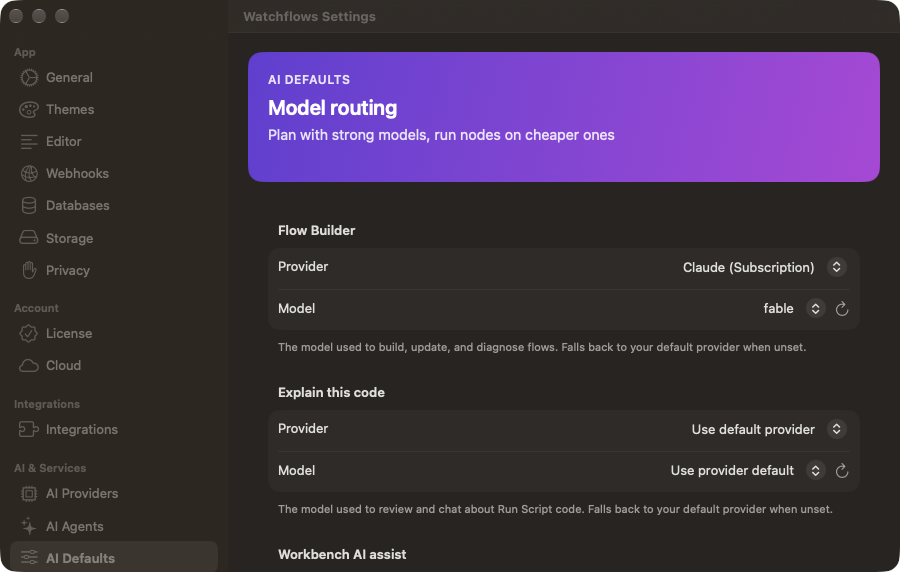
You can also change it later from the model pill in the Flow Builder itself. It changes the same setting.
4. Build your first flow
- Click New Flow. With AI set up, it opens on What should Watchflows watch for?
- Type what you want, or click one of the examples.
- Press Return.
The pill inside the box shows which model will build it.
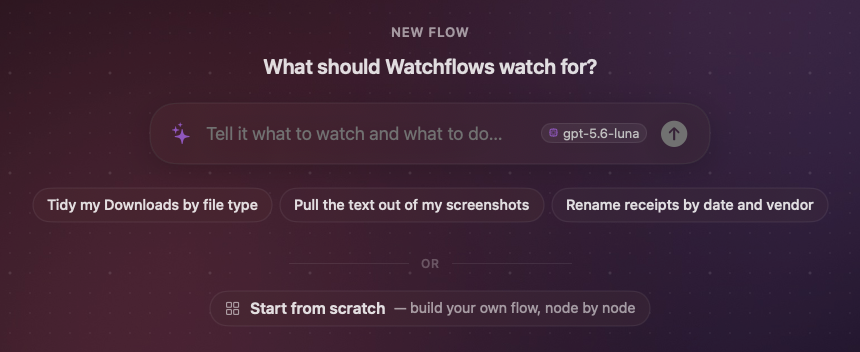
Try this one:
When a PDF lands in my Downloads folder, move it to Documents/Invoices and send me a notification.
The conversation opens on the left, and nodes appear on the canvas as it works. The new flow arrives turned off, with a list of anything it still needs from you. Look it over, press Run to try it, then turn on Enabled.
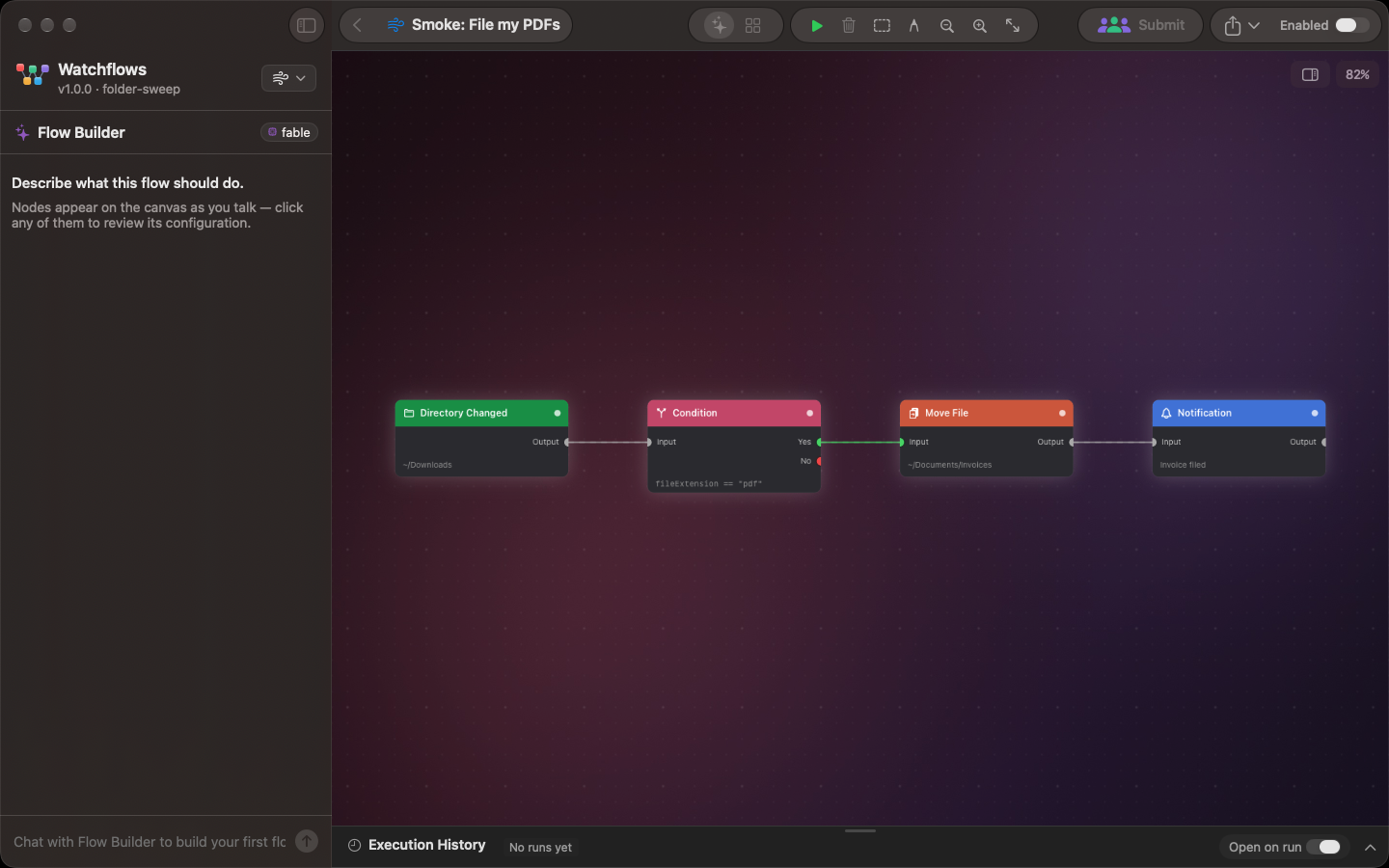
Keep chatting to change it: "only move PDFs with invoice in the name". The Flow Builder page covers the rest. To build by hand instead, follow Getting Started.
If something is wrong
- No Flow Builder anywhere. Your default is Apple Intelligence, or nothing is set up yet. Do step 3.
- Ollama or LM Studio: connection error. The app is not running, or the model is not downloaded. Open it and try again.
- The model list is empty. Check the API key, then click the refresh button next to Default Model.
- A subscription check is red. It says what is missing: install the app or sign in. Then click Recheck.
- A build fails. Click Try again. If it keeps failing, pick a bigger model from the pill.
- What did that cost? See AI Cost Tracking.
Your keys stay on this Mac. Watchflows keeps them in your keychain and sends each one only to the company it belongs to.