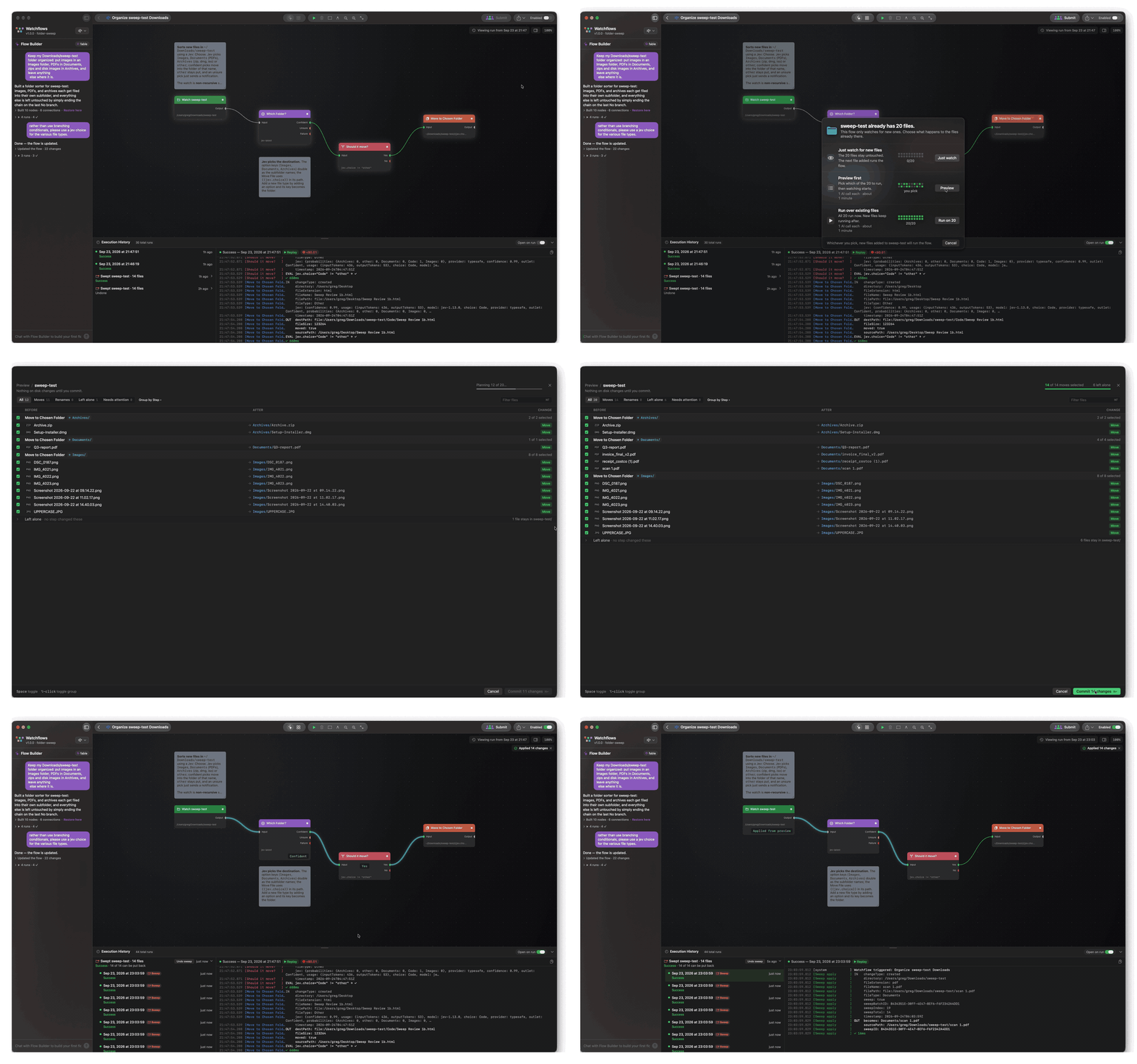
How it works
A Directory Changed trigger only reacts to new files. If the folder already has files in it, Watchflows asks what to do with them. It asks at four points:
- Switching the flow on, when the trigger's folder already has files.
- The Flow Builder, right after it builds you a flow with a folder trigger.
- Right-clicking the trigger node → Run over existing files….
- Dropping a folder onto a flow's card on Home, or onto an open canvas. The flow runs over that folder once. If its trigger had no folder yet, it keeps the dropped one.
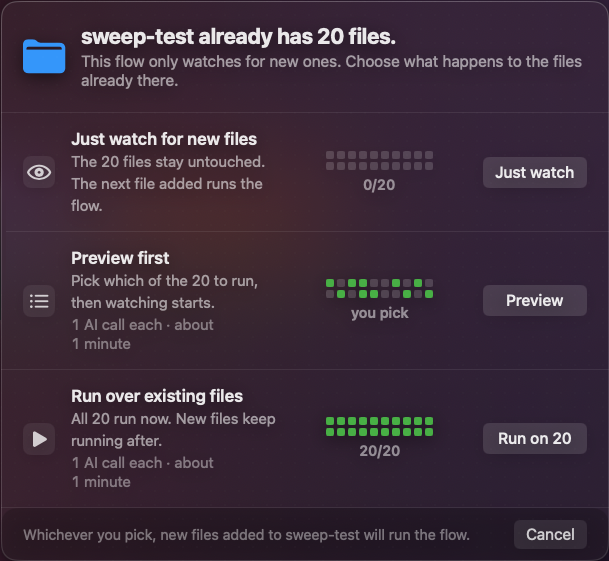
Each one opens the same card with three choices:
- Just watch leaves the files alone.
- Preview shows what would happen first.
- Run on N runs them now.
From the Flow Builder, the menu, or a drop, there's no Just watch — you already asked to run them.
Running over the files
Each file runs through the flow, one at a time, as if it had just arrived. The trigger's own settings still apply: subfolders only if Watch Subdirectories is on, and hidden files are skipped.
When the flow uses AI, the card shows the cost under Preview and Run:
Up to 1 AI call per file
Each AI node counts as at most one call per file — "up to", because a branch can skip one.
A time shows only when the flow has run at least five times before. It comes from how long those runs took, never a guess:
Up to 1 AI call per file · about 9 minutes, from recent runs
A new flow shows no time. With no AI, you see just the time, or nothing. Over 10,000 files, the count reads "10,000+" and the time is a minimum.
While it runs, the canvas shows Sweeping Downloads · 147 / 312 and the next few files. After three files it adds the time left, from how long this sweep's files are taking: · about 12 min left. Stop finishes the current file and skips the rest; files already done stay done. Going back to Home doesn't stop it — it keeps running in the background.
In the flow's run history, the whole sweep is one row: "Ran over Downloads · 312 files". Expand it to see each file's run, and click one to see its log.
Payload
Each file gets the same data a new file would, plus four keys that mark it as part of a sweep:
| Key | Type | Value |
|---|---|---|
filePath | String | Full path of the file |
fileName | String | Name, with extension |
directory | String | Parent directory path |
fileExtension | String | Lowercased, no dot |
fileType | String | Images, Documents, Audio, Videos, Spreadsheets, Presentations, Archives, or Other |
changeType | String | Always created |
timestamp | String | When the sweep reached this file, ISO 8601 |
sweep | Boolean | true — this run came from a sweep, not a live event |
sweepIndex | Number | This file's 1-based position in the sweep |
sweepTotal | Number | How many files the sweep covers |
sweepBatchID | String | Identifies this sweep — the same on every file of one sweep, different for the next |
Use {{sweep}} to treat these files differently — for example, to skip a "new file" notification for them.
Preview mode
Preview runs the whole flow over every file without changing anything on disk. Then it shows you what would happen, and you decide what to keep.
The quickest way in is the Preview button — the eye beside ▶ in the canvas toolbar. It skips the card and opens the review straight away. It shows on any flow with a folder trigger, and it's greyed, with the reason on hover, when the trigger has no folder yet or the flow has a node that can't be previewed.
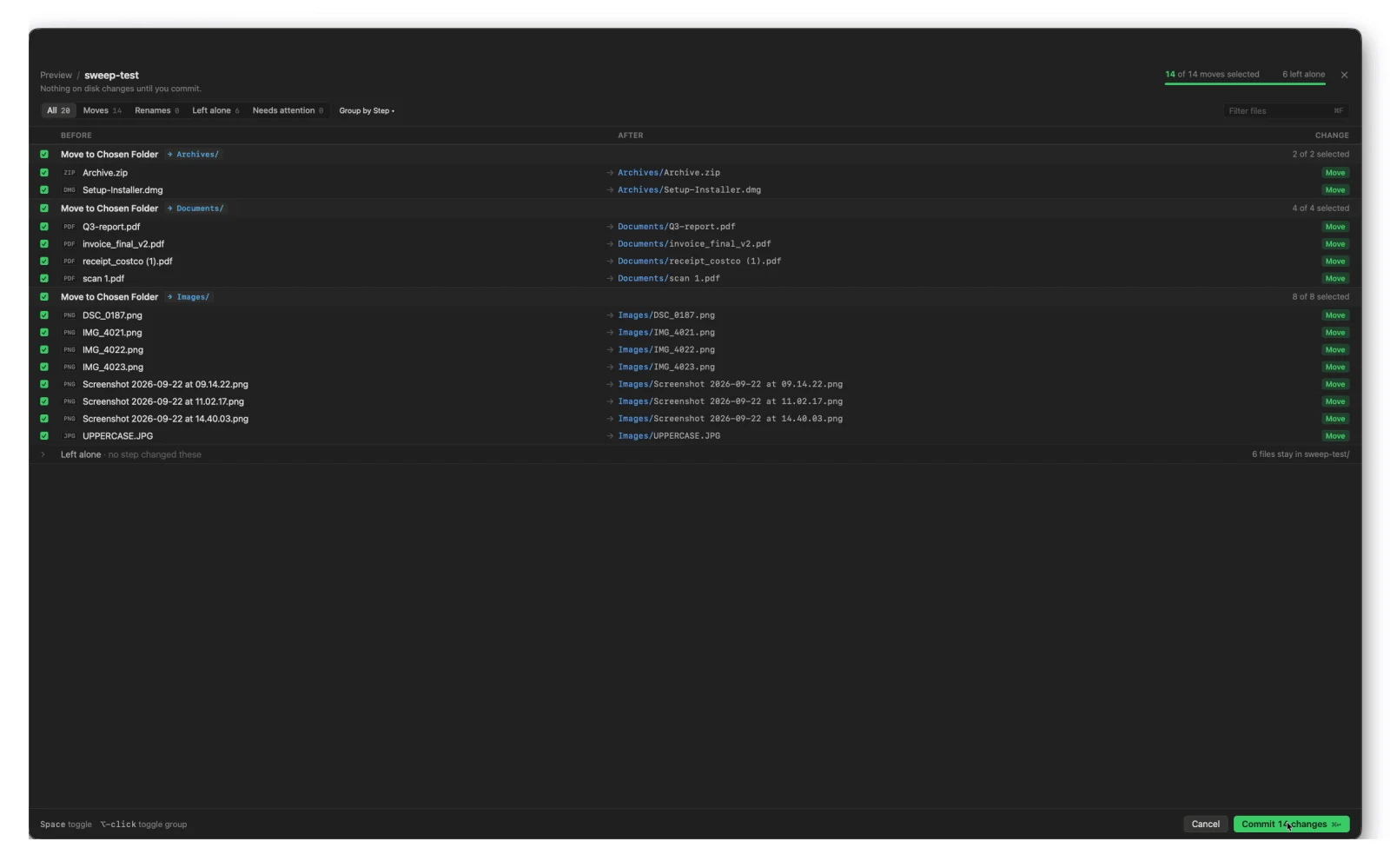
The review shows every file before and after, and what changes (Move, Rename, Trash…). Files are grouped by the step that changes them and where they go; use Group by to group by folder instead. Filter with the chips at the top, or search with ⌘F.
Everything starts checked. Uncheck what you don't want — Space toggles a row, ⌥-click toggles a whole group, and ⌘↩ commits. Files with a problem sit at the top under Needs attention, with the reason. Files nothing changes sit at the bottom under Left alone.
Preview still costs what the flow costs. Nothing changes on disk, but AI nodes really run — once per file.
What can be previewed
Only some nodes can take part in a plan:
- Planned, not done. Move File, Rename File, Move to Trash, Delete File, and Write File.
- Run for real. Nodes that only read or decide — conditions, transformers, AI, and an API request that only reads (GET). The plan depends on their answers.
- Not allowed. Anything that would do something outside Watchflows while you're only looking: a notification, Run Script, sending mail, the clipboard, an Apple app action, creating a Linear issue, a non-GET API request, the Agent node, Run Watchflow, or a form or prompt.
A flow with one of these can still Run on N. Only Preview is turned off, and the card says which node is why.
Commit and undo
Commit makes exactly the changes you left checked. Nothing runs again, and AI isn't called again. If a file changed since the preview, it's skipped and marked Needs attention.
In the run history, a committed sweep is one row: "Swept Downloads · 312 files". Expand it to see each file.
Undo sweep is on that row, next to how many files it can put back. Moves, renames, and Move to Trash can be undone. Permanent deletes, overwrites, and copies can't — see Destructive Actions. A file you've moved since, or whose old spot is now taken, stays where it is.
A preview you haven't committed shows as "Review ready" at the top — click Review to reopen it. Starting a new preview replaces it.
Good to know
Several folder triggers? Watchflows asks about the first one with files (top-left on the canvas). For the others, right-click the trigger and choose Run over existing files….
It asks every time. Switching the flow on shows the card whenever its folder has files — the same files included.