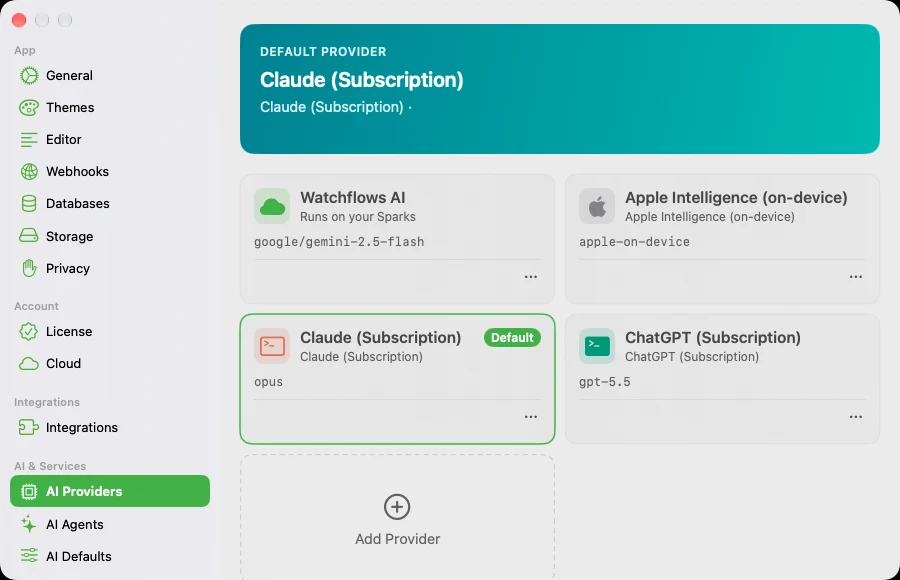
AI Providers

Configure local and cloud LLMs for use with AI nodes.

Overview

Watchflows supports multiple AI providers so you can choose the model that best fits your needs. Run models locally with Ollama or LM Studio for complete privacy, or connect to cloud providers like OpenAI, Anthropic, and Google for access to frontier models.

Every AI node in a workflow specifies which provider and model to use. You can mix providers within the same workflow — for example, use a fast local model for classification and a cloud model for complex generation.

Supported Providers

Provider Display Name Default URL API Key Custom URL
ollama Ollama http://localhost:11434 Not required Editable
lmStudio LM Studio http://localhost:1234 Not required Editable
appleFoundationModels Apple Intelligence (on-device) — on-device Not required Fixed
claudeCode Claude (Subscription) — local CLI Not required Fixed
codexCLI ChatGPT (Subscription) — local CLI Not required Fixed
openAI OpenAI https://api.openai.com Required Fixed
anthropic Anthropic (Claude) https://api.anthropic.com Required Fixed
googleAI Google (Gemini) https://generativelanguage.googleapis.com Required Fixed
openRouter OpenRouter https://openrouter.ai/api Required Fixed
openAICompatible OpenAI Compatible https://api.openai.com Required Editable

Local Models

Ollama and LM Studio run models entirely on your Mac. No API key is needed, no data leaves your machine, and there are no per-request costs. This is ideal for privacy-sensitive workflows or offline use. If your LM Studio server is configured to require an access token, paste it into the LM Studio provider's optional API Key field — leave it blank otherwise.

Both providers expose an OpenAI-compatible HTTP API on localhost. Watchflows auto-discovers available models when you select either provider. If you run the server on a non-default port, update the base URL in the provider settings.

Tip: Start Ollama or LM Studio before running your workflow. Watchflows will show a connection error if the local server is not reachable.

Apple Intelligence (On-Device)

On a Mac that supports Apple Intelligence, Watchflows can run Apple's on-device Foundation model — the same ~3-billion-parameter model behind Apple Intelligence. It is the only provider that is zero-install, zero-cost, and fully private all at once: no model download, no API key, no per-request billing, and nothing ever leaves your Mac. Its guided generation also gives it best-in-class structured output — when an AI node carries a JSON Schema, the model is constrained to that shape as it decodes, so the result is valid by construction.

It is a task model, not a reasoning model. The honest scope: text only, a small (~4K-token) context window, and limited world knowledge or multi-step reasoning. It shines at summarizing, extracting, classifying, tagging, and short rewrites; reach for a larger local or cloud model when you need long documents, code generation, or planning.

Where it fits across Watchflows' AI surfaces:

  • AI Prompt nodes — the recommended default. Classify, extract, summarize, tag, and rewrite, all on-device.
  • Explain This Code — works well for short scripts.
  • Flow Builder — not recommended. Building a whole flow needs more context than the on-device window holds, so pick a bigger model to build flows.
  • × AI Agent node — not supported in this version (the agent needs tool-calling the on-device model doesn't yet expose).

Requirements: macOS 26 (Tahoe) or later, an Apple-silicon Mac, and Apple Intelligence enabled in System Settings. Every M-series Mac (M1 and up, all Pro/Max/Ultra tiers) qualifies; Intel Macs never do. When it's available, Watchflows sets it up for you automatically — new AI Prompt nodes just work with no configuration.

Cloud Providers

OpenAI, Anthropic, and Google require an API key to authenticate requests. Cloud providers give you access to the latest frontier models with high throughput and large context windows.

API keys are stored in the macOS Keychain, not in plain text. Watchflows never sends your key anywhere except the provider's own API endpoint.

Default Models & Image Routing

Each provider has two defaults: a Default Model for ordinary text prompts and a separate Default Image Model for vision. When an AI node is left on its provider's default, Watchflows routes by what the request actually contains — if the payload carries an image, it uses the Default Image Model; text-only requests stay on the Default Model. That lets you keep a fast, inexpensive text model as the default while sending vision work to a capable image model, with no per-node fiddling.

The Default Image Model picker highlights models known to accept images, with a show all option for anything it can't classify. Pick a model explicitly on an AI node and that choice is always honored — routing only applies to nodes left on the default. If a request needs an image but the chosen model can't accept one (or no Default Image Model is set), the node returns a clear, actionable message rather than a raw API error.

OpenRouter

OpenRouter is a unified gateway that routes one API key to 300+ models from many vendors — Anthropic, OpenAI, Google, Mistral, Meta, and more. You pay OpenRouter directly for usage; Watchflows takes no cut and has no business relationship with OpenRouter.

Model IDs are vendor-prefixed: openai/gpt-5, anthropic/claude-3.5-sonnet, google/gemini-2.0-flash. Watchflows handles the prefix transparently — reasoning models like openai/gpt-5 and openai/o3-mini are detected and called with the right parameters.

Get a key at openrouter.ai/keys, paste it into the OpenRouter provider in Settings, pick a model, and you're connected. The base URL is fixed at https://openrouter.ai/api.

BYO-LLM (OpenAI Compatible)

The OpenAI Compatible provider lets you connect to any service that implements the OpenAI chat completions API. This includes services like Together AI, Groq, Fireworks, or a custom proxy.

Set the base URL to your provider's endpoint and enter your API key. Watchflows will use the standard /v1/chat/completions path for requests.

{
  "provider": "openAICompatible",
  "baseURL": "https://api.together.xyz",
  "model": "meta-llama/Llama-3-70b-chat-hf"
}

Credential Storage

All API keys are stored in the macOS Keychain. This provides OS-level encryption and access control. Keys are never written to disk in plain text, never included in workflow exports, and never transmitted to Watchflows servers.

  • Keys are stored per-provider in your login Keychain.
  • Exporting a workflow never includes credentials.
  • Local providers (Ollama, LM Studio) need no credentials at all.