At a glance
- Fires when
- Every poll interval, from 1 second to 5 minutes
- Emits
- processName, value, pid, cpuUsage, memoryMB, isRunning, timestamp
- Good for
- Watching a resource-hungry app, catching a runaway process
Set it up
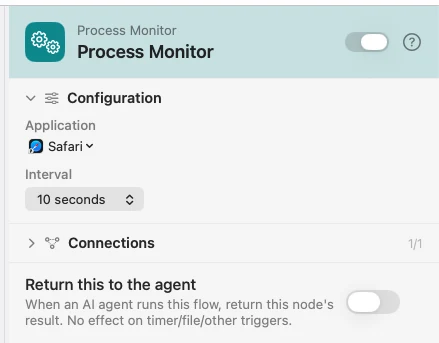
Pick the app and the interval. The picker lists the applications installed on this Mac. At run time the name is matched as a substring, ignoring capitalisation, against both a running app's name and its bundle identifier.
Configure
| Field | Default | What it does |
|---|---|---|
| Application | — | The app to watch. |
| Interval | 5 seconds | 1s, 2s, 5s, 10s, 30s, 1 minute, or 5 minutes. |
Output
Every key is available downstream as {{key}}.
| Key | Type | Value |
|---|---|---|
processName | String | The running app's name, or the name you configured when it isn't running |
value | Number | The CPU percentage — the same number as cpuUsage, under a metric-agnostic name |
pid | Number | Process id |
cpuUsage | Number | CPU percentage |
memoryMB | Number | Memory footprint in megabytes |
isRunning | Boolean | Whether the app was running for this sample |
timestamp | String | ISO 8601 |
Example: watch an app's CPU
Process Monitor samples the app every 10 seconds. Condition asks whether {{value}} is greater than 80. Yes goes to Notification.
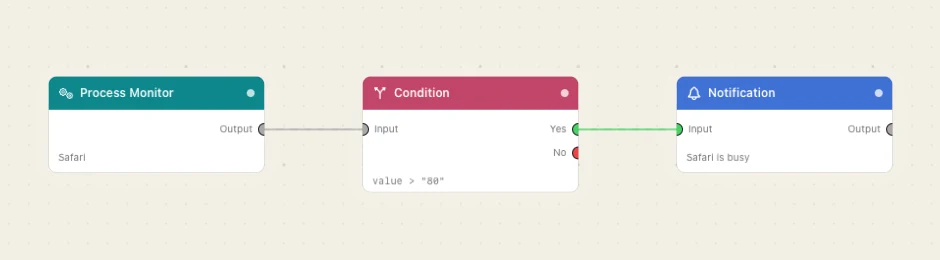
Paste this into the Flow Builder to get the same flow:
Watch Safari's CPU every ten seconds and notify me when it goes over 80 percent.
Good to know
An app that isn't running still emits. The tick reports isRunning: false with pid, cpuUsage, memoryMB and value all at 0, so "did it quit?" is a question the flow can ask.
The flow streams from ▶, not from the Enabled toggle. An emitter-only flow is never armed by enabling it or by launching the app. Press ▶ on the canvas to start, ■ to stop.
Several emitters in one flow all stream. Pressing ▶ starts every enabled emitter on the canvas, unless the run-target switcher has scoped the Play to one chain.