How a connection works
Three tiles live at Settings ▸ Integrations: Linear, Artifyde and Jev (TypeSafe AI). Each takes one credential you paste, then Validate & Connect. Watchflows checks it against the service and keeps it as a file on this Mac — not in the keychain, never uploaded. Nothing is connected until you connect it.
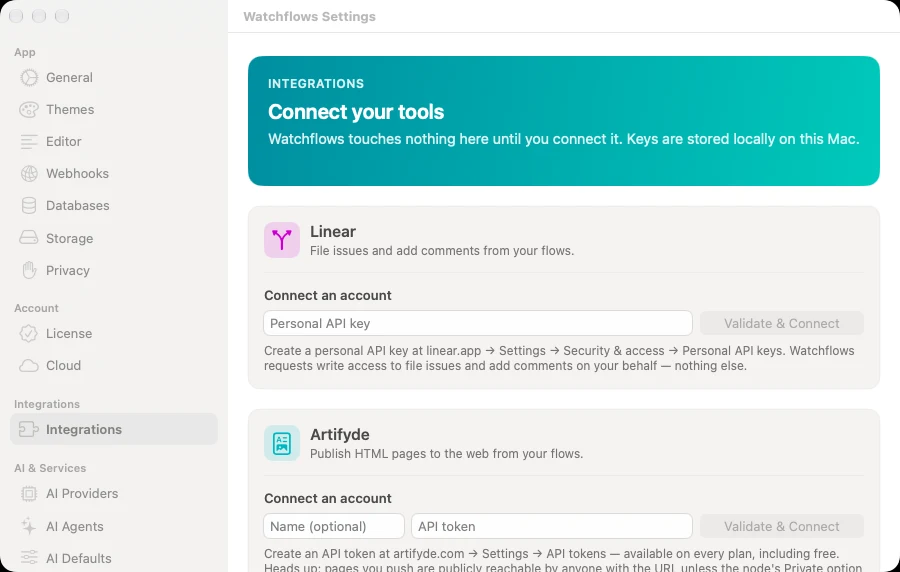
A node that needs an integration stays hidden from the node library until that service has at least one connection. Connect more than one account and each row gains Make default — the default wears a Default pill and is what a node runs as when it names no account.
What each one unlocks
| Service | Credential | Nodes |
|---|---|---|
| Linear | Personal API key, from Settings ▸ Security & access ▸ Personal API keys | Linear: Create Issue, Linear: Add Comment, Linear: Query Issues |
| Artifyde | API token, from artifyde.com ▸ Settings ▸ API tokens — free tier included | Artifyde: Push Page |
| Jev (TypeSafe AI) | API key, from console.typesafe.ai | Jev: Yes or No, Jev: Choose, Jev: Score |
A Linear connection is scoped to one workspace, so its row shows the workspace and your email and one person can connect several workspaces separately. Artifyde and Jev expose no account identity, so their rows show a masked key suffix such as ak_…Kkzf. Connecting Jev spends one tiny test question to prove the key works.
Good to know
Linear. Create a personal API key at linear.app ▸ Settings ▸ Security & access ▸ Personal API keys. Watchflows requests write access — enough to file issues and add comments on your behalf, nothing else.
Artifyde pages are public by default. Create an API token at artifyde.com ▸ Settings ▸ API tokens — available on every plan, including free. Anyone with a pushed page's URL can open it unless the node's Private option is on, which needs a paid Artifyde plan.
Jev (TypeSafe AI). Copy your API key from console.typesafe.ai and give the connection a name — the key's name in the console works — so nodes show that instead of the masked key.
No TypeSafe key? Use OpenRouter or Watchflows Sparks. This tile is one of three ways to pay for a Jev question. OpenRouter hosts the same model at the same price, so a Jev node's Account field also lists every OpenRouter provider you have added in Settings ▸ AI Providers, and Watchflows Sparks if you have any. Same answer, same outlets, same thresholds — only the bill changes. The Jev nodes appear in the palette as soon as you have any one of the three.
Apple Calendar is not an integration. It has no tile and no credential. The calendar nodes use EventKit and ask macOS for full Calendars access the first time one runs.