Opening it
A long-text field in the inspector carries a ⤢ on its label. Press it and the whole window becomes an editor for that field; Esc or the back chevron returns you to the canvas where you left it. Everything here works with no AI configured — the assist bar is an extra layer, never a requirement. Each node opens its own arrangement of the same surface.
| Node | Room | Tabs |
|---|---|---|
| AI Prompt | Prompt Editor | Prompt, System Prompt, Structured Output, Test Values |
| AI Agent | Agent | Goal, System Prompt, Verification, Test Values |
| Run Script | Script Editor | Script, Output Schema, Test Values |
| Run Script, through its ✨ | Explain This Code | your script beside a plain-English review |
| HTML Template, HTML View | HTML Editor | the page, beside a live render |
| Run SQL | SQL Workbench | SQL, Test Values |
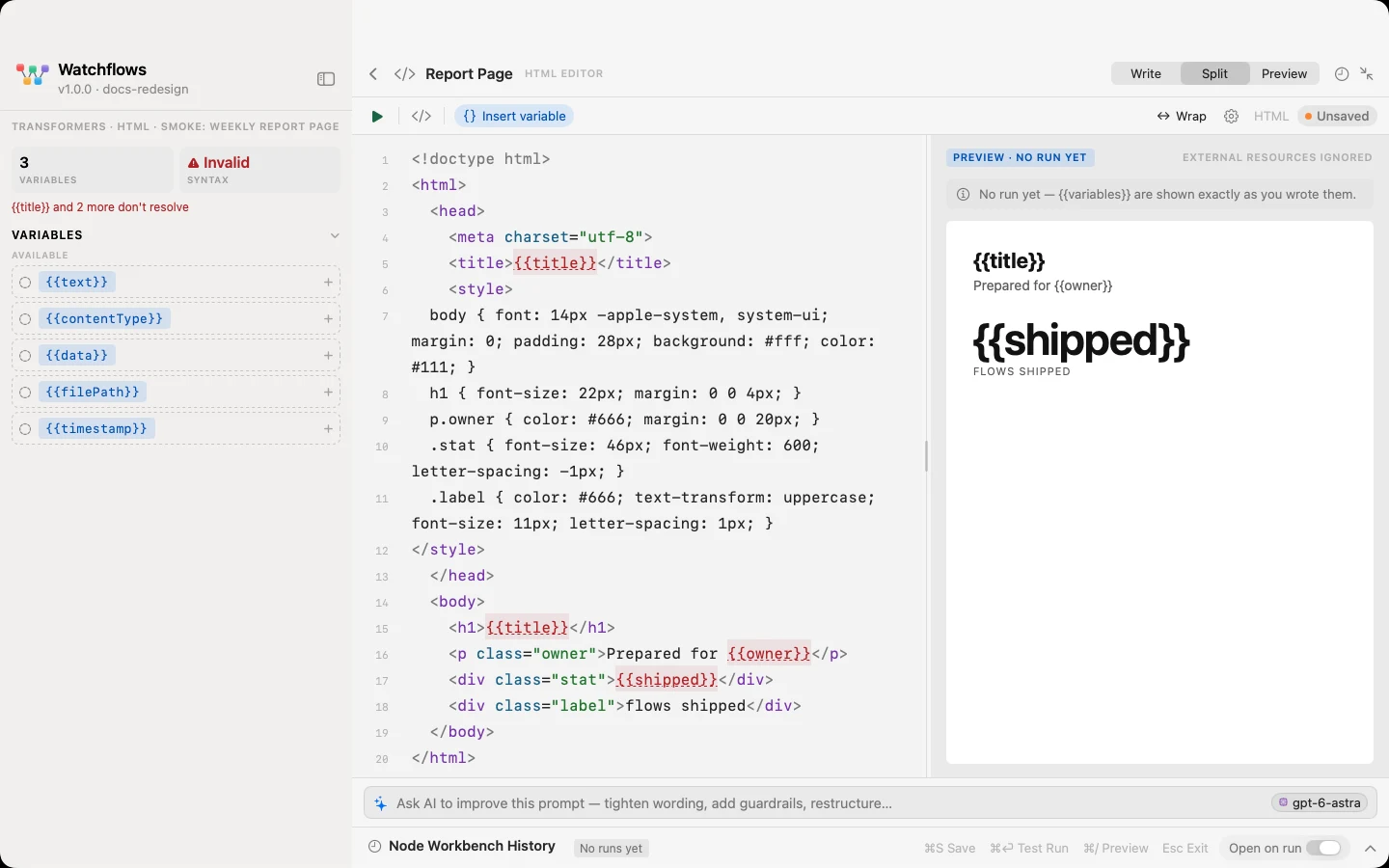
The Prompt Editor, the Agent and the HTML Editor offer three ways of looking at a document — Write, Split and Preview — with ⌘/ to toggle the preview and back. The preview shows the document as it will really be used: a prompt renders as the interpolated text the model receives, the HTML Editor renders the finished page. The SQL Workbench's third mode is Results instead, and the Script Editor has no preview at all.
Variables you can trust
Every {{variable}} is painted while you type. One that resolves upstream takes your accent colour; one that nothing provides turns red with a dotted underline — the most common flow bug, visible now instead of at run time. Type {{ for a picker of every variable this node can reach, with values sampled from the last run, or click a pill on the variables rail. How data moves between nodes is Payloads.
A script reads $PAYLOAD_…, not {{tokens}}. Run Script never interpolates its body, so the rail inserts the environment variables the script actually reads.
Test Values and ▶ Run This Node
Test Values is the input your test runs start from — a form or raw JSON you author, rather than whatever the flow last produced. ▶ (⌘↩) runs this node alone, seeded from it; nothing downstream fires, and pressing again stops a long run. Each run lands in the history bar along the bottom, this node's private ledger — bench runs never reach the flow's Recent Runs, and a failed experiment never marks the flow unhealthy.
Isolated does not mean simulated. The node runs for real: an AI prompt spends tokens, a script executes, an Agent runs its tool loop under its budgets, and the SQL Workbench's ▶ runs your statement against the real database the node points at. HTML Template is the one exception — its ▶ only renders your test values through the template.
The SQL Workbench
Write the statement on the left, press ⌘↩, and the rows land on the right as a real table: sortable columns, a choice of row density, right-click copy for a cell, a row, a column or the whole result as TSV, CSV or JSON. A write reports its row count instead. A result cut at 5,000 rows or 8 MB says so in the footer rather than quietly showing you less than there is, and an error points at the line and column in what you wrote.
A destructive statement asks once per database. DELETE, UPDATE, ALTER and a REPLACE write are read back to you the first time you run one against that database. DROP asks every time — a second DROP is a second table.
Assist, saving, preferences
With a provider configured, an assist bar sits under the editor — Tighten, Add examples and Restructure on prose, Use variables, Newest first and Limit rows on SQL, free text anywhere. It sees your other tabs and how this node sits in the flow, always proposes rather than applies, and a rewrite you Apply is one ⌘Z. Where the node has no model of its own, a pill in the bar picks one: the Workbench AI assist role under Settings ▸ AI Defaults.
Your typing reaches the node on a rolling two-second autosave, ⌘S saves now, and closing saves first. While the Workbench holds a field, the inspector shows it read-only, and each document you changed lands as one undo step on the canvas. Settings ▸ Editor holds this editor's line-wrapping preferences.