What a Section is
A Section is a Note with its backdrop switched on — drawn as a tinted rectangle behind the wires and the cards, so everything it groups stays visible on top. Use one to mark out a region of a big flow: INTAKE, AI PASS, NOTIFY. It has no ports, emits nothing, and never appears in a run's timeline.
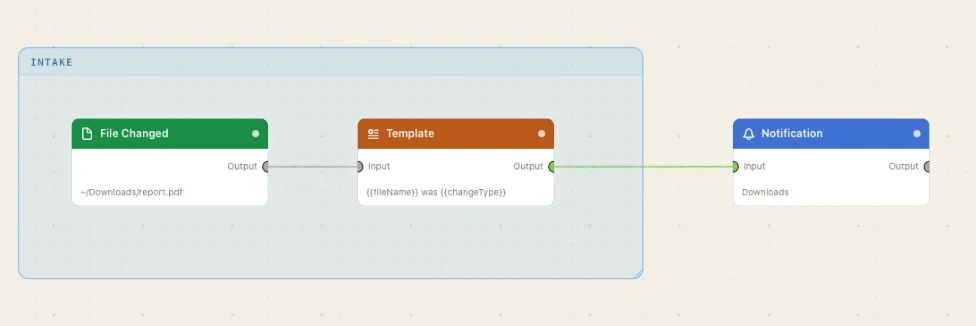
Four ways to make one
- Palette ▸ Section — drag the row beside Note. It lands centred on your cursor, two columns wide, already enclosing what you aimed at.
- The Section tool, or ⌥-drag — press the dashed-rectangle button in the toolbar and drag; the rectangle you draw becomes the Section, label open for typing. Holding
⌥on empty canvas does the same.Escputs the tool away. - Edit ▸ Wrap in Section (
⌘G) — select cards and a Section appears around them. Also on the canvas right-click menu; withheld for an empty selection. - Inspector ▸ Use as backdrop — flip the switch on a Note. Its text becomes the corner label; flip it back for your note again.
Membership is geometry
A node belongs to a Section when its centre point is inside the rectangle. Nothing is parented and nothing is stored — the answer is re-read from where things stand, so a card hanging over an edge still comes along if its middle is in.
The top label band is the handle: drag it and the Section takes its members with it, in one undo step. The carried cards land unselected, so ⌫ right after a move deletes only the Section you grabbed.
Everywhere else the fill behaves like bare canvas — drag to rubber-band the cards on top, click without dragging to select the Section itself. Cards are offered a click first, so a Section can never steal one from a node it covers. Drag any edge or corner to resize: contents never move, membership is just re-read, so growing a Section picks up what it now covers and shrinking it lets go.
The capture tell. Drag a card around and the Section its centre crosses into brightens its border, then dims when the centre leaves — so you can see what a region will take before you let go.
Overlapping Sections are peers, not parents. Two that overlap never carry each other, and deleting one leaves every card it covered exactly where it stood.
Label, colour, and the file
Double-click the label to edit it in place. It draws upper-cased in the top-left corner; an empty one reads Section. Sections take the seven Note colours — Yellow (the default), Orange, Pink, Purple, Blue, Green and Gray — from the toolbar's centre pill. VoiceOver announces one as "Section: label".
A Section saves as an ordinary Note carrying backdrop: true. There is no new node type and no format change, so a flow with Sections exports like any other and an older build draws each one as a note.
Sections you didn't draw. A Run Watchflow preview sits in a dashed Section of its own, named for the called flow. It can't be recoloured or relabelled, but it moves by its band, ⌫ drops that flow from the node, and the arrow on its caption opens the previewed flow.