Make a folder
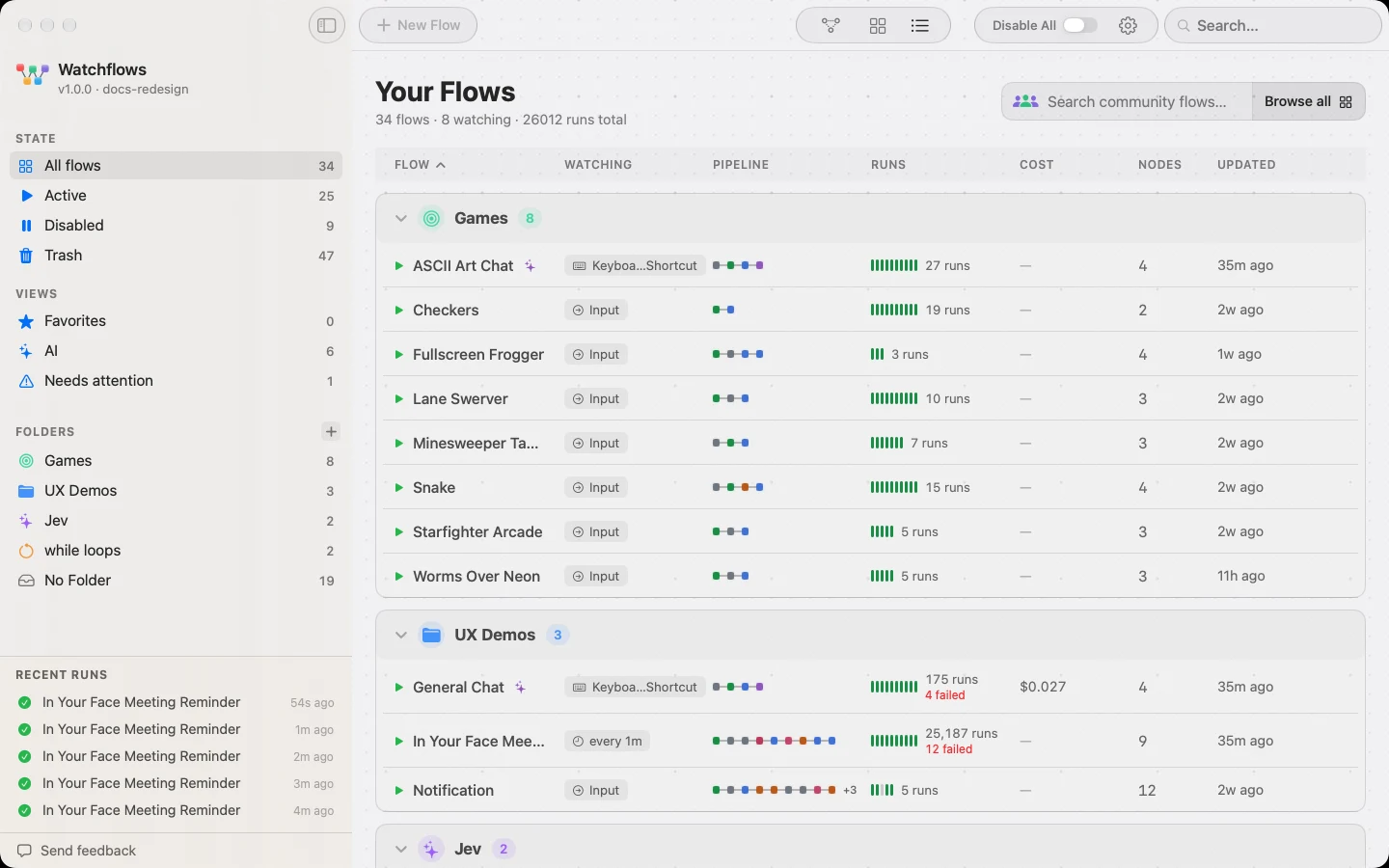
Press + beside FOLDERS in the sidebar, or right-click empty space on Home and choose New Folder…. Dragging one card onto another loose card does it too — Watchflows offers a folder holding both.
The sheet takes a name, one of eight colors (Red, Orange, Yellow, Green, Blue, Purple, Pink, Teal) and an icon from a searchable symbol library. Color and icon are how you recognize the folder in the sidebar, in the card grid, and on its Folder Dashboard.
Move flows in and out
Drag a card onto a folder's container, its table section, or its sidebar row. Drop it on No Folder to take it back out, or select several and use the right-click Move to Folder. A flow made with New Flow while you are inside a folder lands in that folder.
Right-click a folder — its container in card view, its section header in the table — for Rename…, Change Color and Delete Folder. Deleting a folder never deletes flows: they return to No Folder.
Favorites
Hover a card or a table row and click the star; it stays visible once set. The right-click menu offers Add to Favorites / Remove from Favorites, and applies to a whole multi-selection.
Favorites is a sidebar view, not a section. Starring a flow does not move it — click Favorites under Views to see only the starred ones.
Folders are one level deep. A flow belongs to one folder or to none, and no folder can hold another.